Explanation of the DICOM Viewer
The DICOM Viewer enables users to view and manipulate a wide variety of medical images.
Note: to use this feature, one must have a sponsor level account and it must be enabled for your Trial - please contact smart.submit@clario.com for more information on this topic.
HTML5-Compliant - Requires no installation and is compatible with any HTML5-compliant web browser (including Google Chrome, Microsoft Internet Explorer 11 and up, Microsoft Edge, Mozilla Firefox, MacOS Safari, iPad, iPhone, Android, and more).
Image Sources and Network Sharing - Digital Images from a variety of different sources (including CT, MRI, Ultrasound Units, imaging sources etc.) can be analyzed, displayed and manipulated.
Powerful Viewing and Processing Options - There are several different functions for viewing images. Some of these functions include annotation and measurement of regions of the image, image stacking, window width, and level manipulation. 3D images can be rendered through VRT , MIP , and MPR (3D) functions.
Default Toolbar
Deep dive on specific functionality
Below we'll go in detail on each function of the DICOM Viewer. Click on the link to download the Quick Reference Guide.
1. Layout Options
Save Study Structured Display
The Save Study Structured Display tool is used to save the current position of the image series.
To use the Save Study Structured Display tool, first select the Compose Layout button. Then place the series in the different image boxes. Make sure to orientate, layout the image and apply the tools (synchronized stacking, etc.) desired to the image. Once the study is laid out in the desired format, click the Save Study Structured Display button to save the DICOM Structured Display into the existing study.
Delete Study Structured Display
The Delete Study Structured Display is used to delete a previous layout saved from the Save Study Structured Display button.
To use the Delete Study Structured Display tool, first select the Compose Layout button. Then manipulate the study structure and save it. Once a study structure is saved, click the Delete Study Structured Display to delete the once saved study structure.
Change Series Layout
The Change Series Layout used to change how the series is viewed. The Rows and Columns can both be changed. To use this tool, click on the Change Series Layout button and a Change Series Layout screen will appear. In this screen the ability to change the Rows and Columns is available.
Steps to Change a Series Layout
- Click the Change a Series Layout button
- Next, change the Rows or Columns to the desired number
- Click OK to apply the changes.
Change Series Layout Options
Change Study Layout
Change Study Layout is used to change how to view the study. The Rows, Columns, and Templates can all be changed.
Steps to use the Change Study Layout
To use this tool, click on the Change Study Layout button and a Change Study Layout screen will appear. This window provides the ability to change the Rows and Columns. The Templates section provide preconceived views that the study layout can be changed to. A custom template can also be created through the use of the Template Editor .
Delete Cell
The Delete Cell tool is used to unload an image from the selected Image Box. This tool does not delete the series from the database.
To use the Delete Cell tool, have a series displayed in the viewer. Then, click the Delete Cell button. If multiple images are displayed, select an image within the series to unload. Then, click the Delete Cell button and it will unload the selected series and leave a blank cell next to the unselected series.
2. Window Viewing Tools
The Window Viewing Tools are used to change how the image is viewed from within the viewer. They allow images to fit the window viewer and provide the ability to compare the images.
Fit
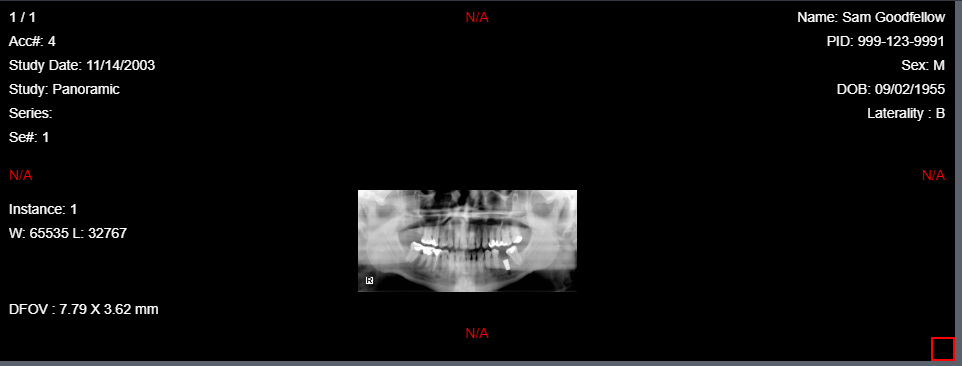
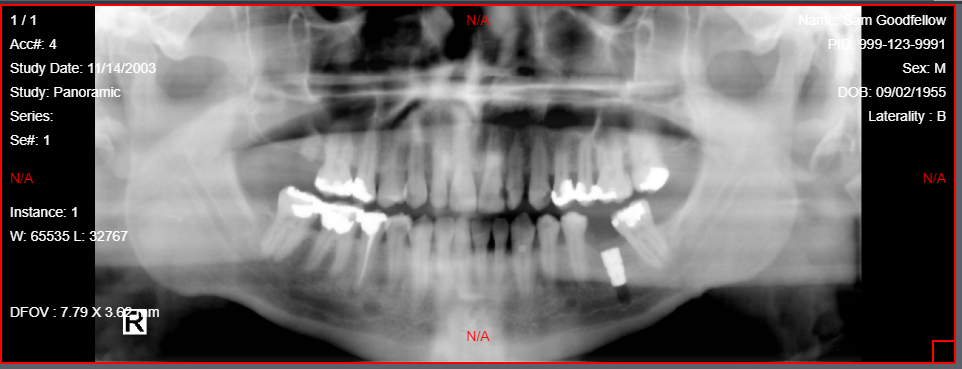
The Fit tool returns an image that has been zoomed in to the size of the original frame holding the image. To use this tool, select the Fit button while the image is displayed on the screen.
Steps to use the Fit Tool
- Select the image that needs to be manipulated.
- Next, click the Fit button.
Original Image
Fit Image
One to One
The One to One tool is used to perform a pixel to pixel display where one pixel of an image is represented by one pixel on the screen. The image will be displayed at the same resolution as the screen, providing the clearest quality.
To use this tool, select the One to One button while the image is displayed on the screen.
Steps to use the One to One Tool
- Select the image that needs to be manipulated.
- Click the One to One Tool.
Sort Series
The Sort Series tool can be used to sort a multi-frame/multi-image instance series. The series can be sorted by Acquisition Time, Axis, and Instance Number.
To use this tool, select the Sort Series button, then choose one of the three options from the drop-down menu. In order for the button to function an image within the series must be selected.
Enlarge a Photo
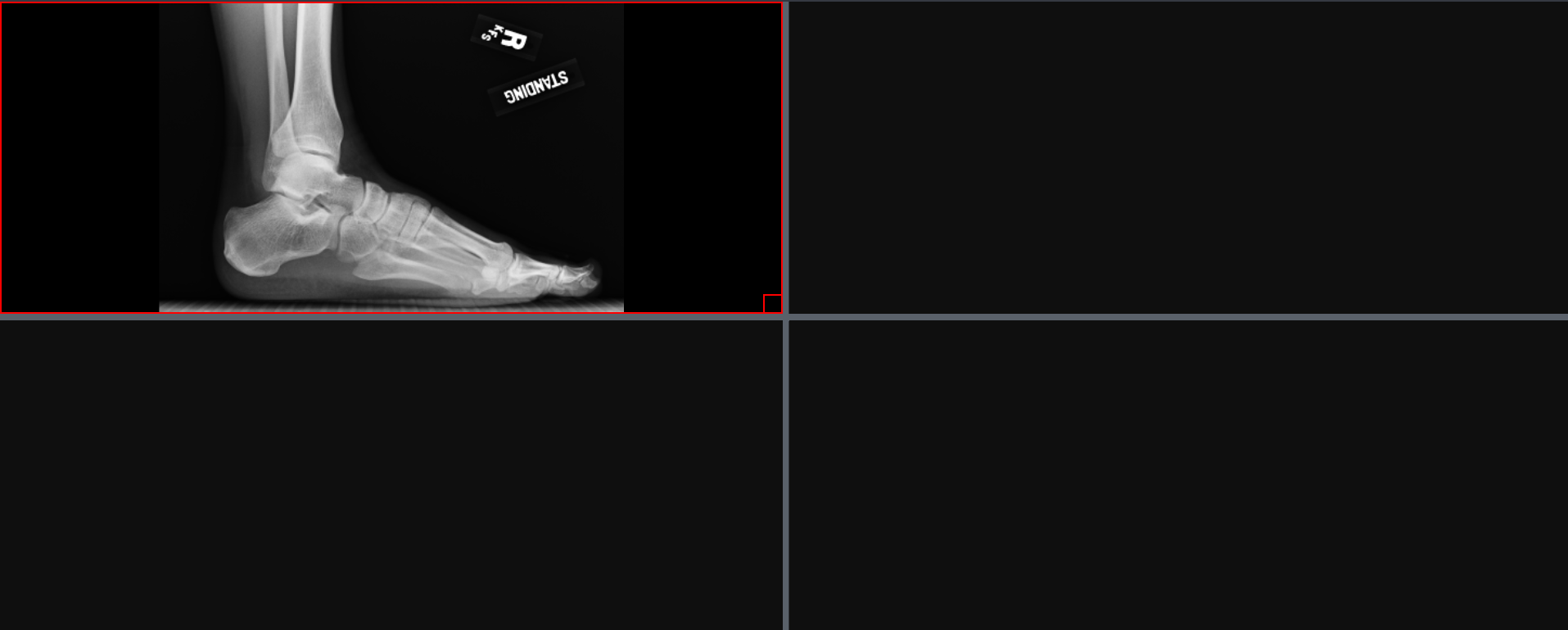
By double clicking the image, it will fill the entire viewing window with the image. This is also known as performing an Explode and Implode of the image.
Steps to Selecting and Enlarging an image
- Click image once to select the image.
- Then double click to toggle between seeing the full series and a single image from the series.

3. Syncing Image Tools
The Syncing Image Tools are used to connect images within a series together. When one image is manipulated (e.g., applying Zoom in or out), the changes will be reflected in all of the images.
Link Images
The Link Images tool used to link all the images within a stack/series to change when one image is manipulated. When the Link Images tool is not selected then only the image selected will be manipulated.
Steps to use the Link Images Tool
- Choose a series that has multiple images within in the viewer.
- Click the Link Images button.
- Make manipulations to the one image and all images will be manipulated in the same way.
Link Cells
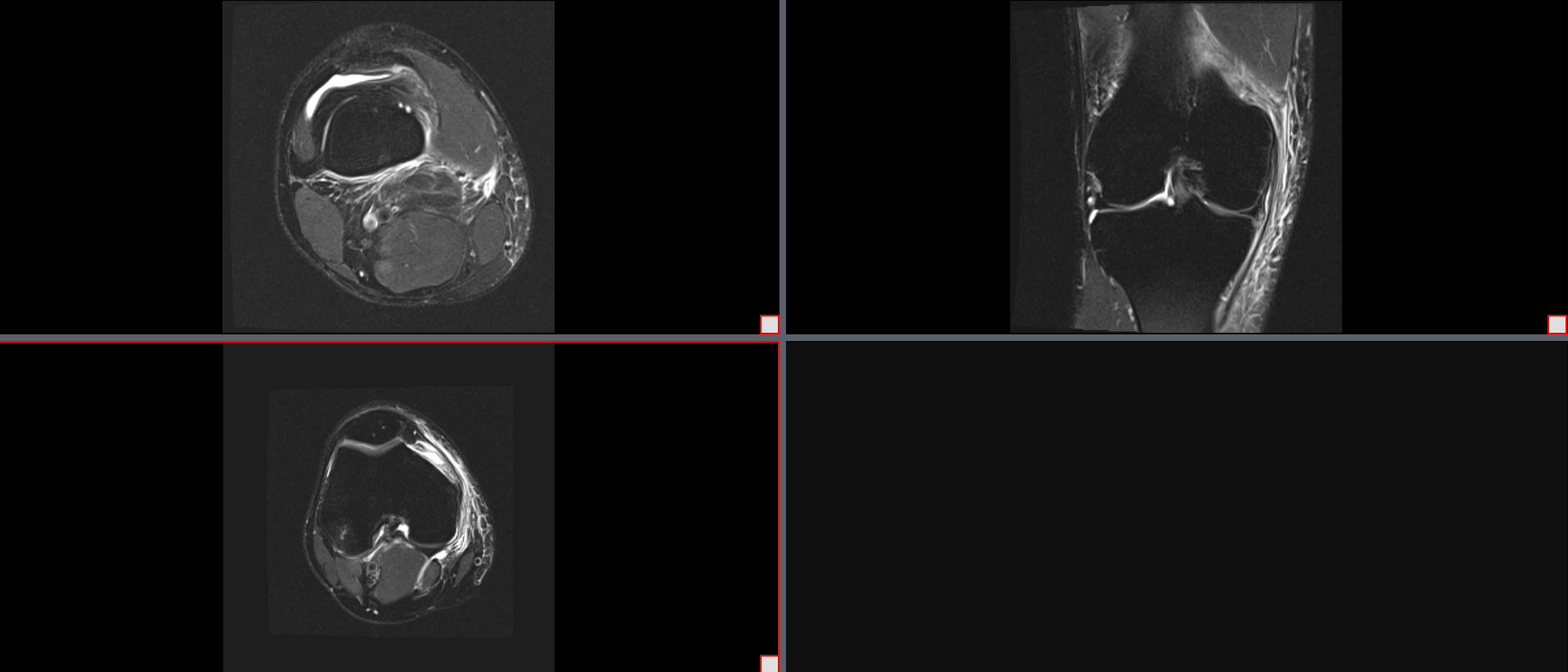
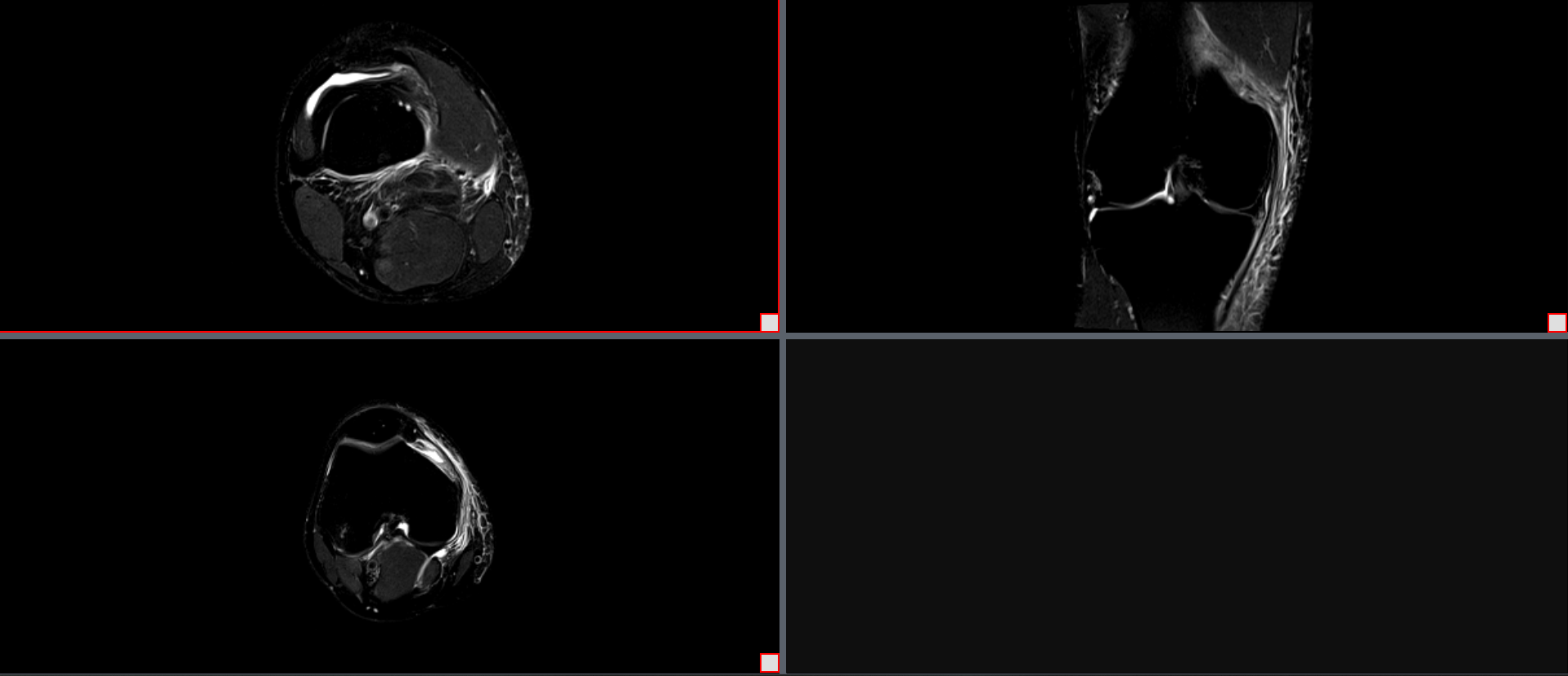
The Link Cells tool is used to link multiple series from different studies so that they can be manipulated together (e.g., synchronized scrolling).
To use this tool, two side-by-side series must be displayed in the viewer. Then select the red box in the lower right-hand corner. Once they are selected, click the Link Cells button. This will allow the cells to be linked to each other.
Link Cells: Side-by-Side Series
Toggle Study Time Line
The Toggle Study Time Line tool is used to show all available series that are currently selected for the patient. These are organized by time order and can be clicked and dragged onto a new cell. These will appear at the bottom of the screen with a description and a date.
To use the tool, click the Toggle Study Time Line. There needs to be more than one study associated to the name to see the study time line toggled.
Steps to use the Toggle Study Time Line
- Choose a series that has multiple images within in the viewer.
- Click the Link Images button.
- Make manipulations to the one image and all images will be manipulated in the same way.
Synchronize Series
The Synchronize Series tool is used to make all images in different series that have the same stack orientation to have the ability to be scrolled in sync. If the series are linked or they are in the same frame of reference, this will synchronize the operations. This can be a precursor to using other tools such as Scroll Row , Scroll Page , and Brightness/Contrast Color . To use this tool, there will need to be two or more series present in the viewer. First, select the right box in the bottom right hand corner. Then click the Synchronize Series button. This will sync the two series.
Steps to use the Synchronize Series
- Choose a series that has multiple images within the viewer.
- Click the Link Images button.
- Make manipulations to the one image and all images will be manipulated in the same way.
Scroll Frame
The Scroll Frame tool is used to scroll a frame at a time when viewing a stacked series in grid view.
To use this tool, the images need to be in a multi-imaged instance series or a multi-frame instance series that is displayed in a tiled layout. Once the layout is achieved click the Scroll Frame button. This allows the scroll wheel to scroll by the frame. This is the default setting.
Scroll Row
The Scroll Row tool is used to scroll a row at a time when viewing a stacked series in grid view.
To use this tool, the images need to be in a multi-imaged instance series or a multi-frame instance series that is displayed in a tiled layout. Then select the Scroll Row button. This allows the scroll wheel to scroll by the row. So, each image in the row in chronological order will scroll up or down. For example, if the tile layout is set up to be 5 frames/images in the row, then, the images will scroll up and down in rows of 5s.
Scroll Column
The Scroll Column tool is used to scroll a column at a time when viewing a stacked series in grid view.
To use this tool, the images need to be in a multi-imaged instance series or a multi-frame instance series that is displayed in a tiled layout. Then select the Scroll Column button. This allows the scroll wheel to scroll by the column. So, each image in the column in chronological order will scroll up or down. For example, if the tile layout is set up to be 5 frames/images in the column, then, the images will scroll up and down in columns of 5s.
Scroll Page
The Scroll Page tool is used to scroll a page at a time when viewing a stacked series in grid view.
To use this tool, the images need to be in a multi-imaged instance series or a multi-frame instance series that is displayed in a tiled layout. Then select the Scroll Page button. This allows the scroll wheel to scroll by the page. For example, if the tile layout is a 5 x 5, then, when the Scroll Page button is activated the next/previous 25 slices will appear when the scroll wheel is moved up or down.
Toggle Cine
The Toggle Cine tool is used to animate an image stack. If there are multiple cells with different image stacks selected, then they will animate in sync.
To use this tool, there needs to be at least one image stack selected. Then, click the Toggle Cine button to turn on/off the animation. Unless the animation is a loop, the Toggle Cine button will need to be off in order to use the scroll wheel function back and forth through the image stack.
4. Manipulation and Analysis Tools
The Manipulation and Analysis Tools are used to alter the image or obtain analytical information.
Analysis Probe Tool
The Probe Tool allows to identify the density (pixel value) underneath the cursor, while also giving a x and y coordinate for location referencing. When looking at a CT image, the value underneath the cursor is displayed in X-ray attenuation using Hounsfield units (HU). For a grey scale image pixel value is the brightness of an image and Hue value is the number attributed to the shade of color. To use this tool, select the image that to use the Probe Tool button on. Click the Probe Tool button and then click again when the cursor is over the image to see the x,y and pixel value (Hue value for CT). Hold down the left-click of the mouse in order to see the information.
Steps to use the Probe Tool
- Click the Probe Tool button.
- Click and hold the mouse.
- Drag the cursor over the image to see the x,y coordinates and density on the image.
Manipulation Tools
Window Level
The Window Level tool is used to adjust the brightness and contrast of an image. To apply this effect, select the Window Level button and click on an image and hold the left mouse button down. Move the mouse left and right to adjust the brightness. Move it up and down to adjust the contrast. To stop adjusting, let up on the left mouse button.
Steps to Change a Series Layout
- Click Window Level button
- Click and drag the cursor left/right or up/down to manipulate the contrast/brightness respectively.
Custom Window Level
The Custom Window Level tool is used to create and implement custom brightness and contrast templates.
To apply the custom templates, click the Custom Window Level button. Then choose the desired custom template or click the custom button to manipulate the brightness (center) and contrast (width) to the desired effect.
Steps to use the Custom Window Level Tool on an X-Ray
- Click the Custom Window Level button.
- Adjust the Width (contrast) and Contrast (brightness).
- Click Apply.
- Click OK.
Steps to use the Custom Window Level Tool on 3D Image
- Click the Custom Window Level button.
- Chose a custom window level template.
- Click Apply.
- Click OK.
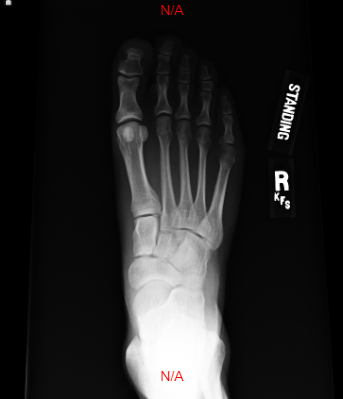
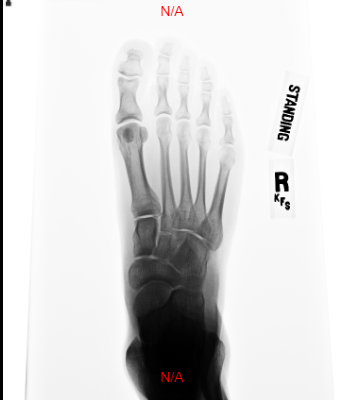
Invert
The Invert Tool used to make the image the complete opposite color from what is displayed. To use this tool, select the Invert Button or from the drop down button. The Invert function can be toggled on and off by one click of the Invert button.
Steps to use the Invert Tool
Click the Invert button to toggle invert button on/off
Rotate Clockwise
The Rotate Clockwise tool is used to rotate images 90 degrees clockwise with each click. To use this tool, select the Rotate Clockwise button or from the drop-down menu next to Rotate Counterclockwise / Flip / Reverse , and select the Rotate Clockwise button for each 90 degrees clockwise rotation.
Steps to use the Rotate Clockwise tool
Click the Rotate Clockwise image repeatedly to rotate the image in a 90 degrees clockwise motion.
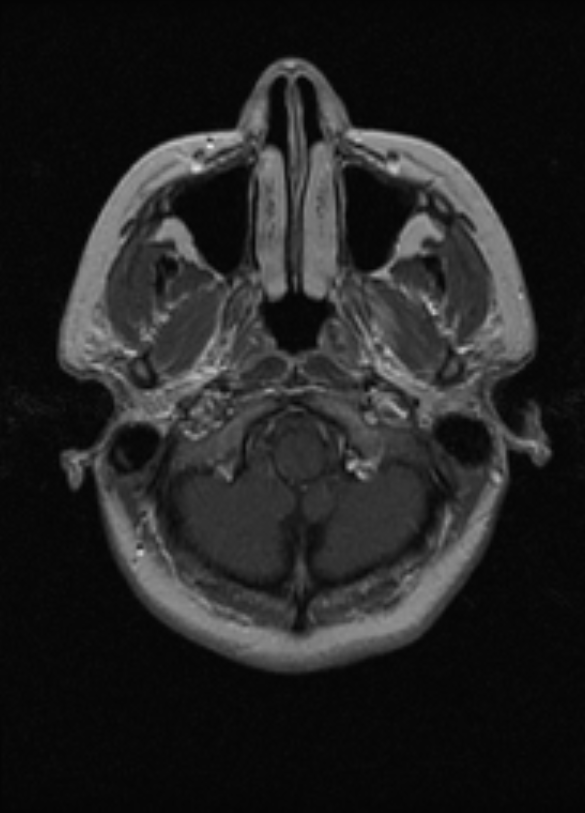
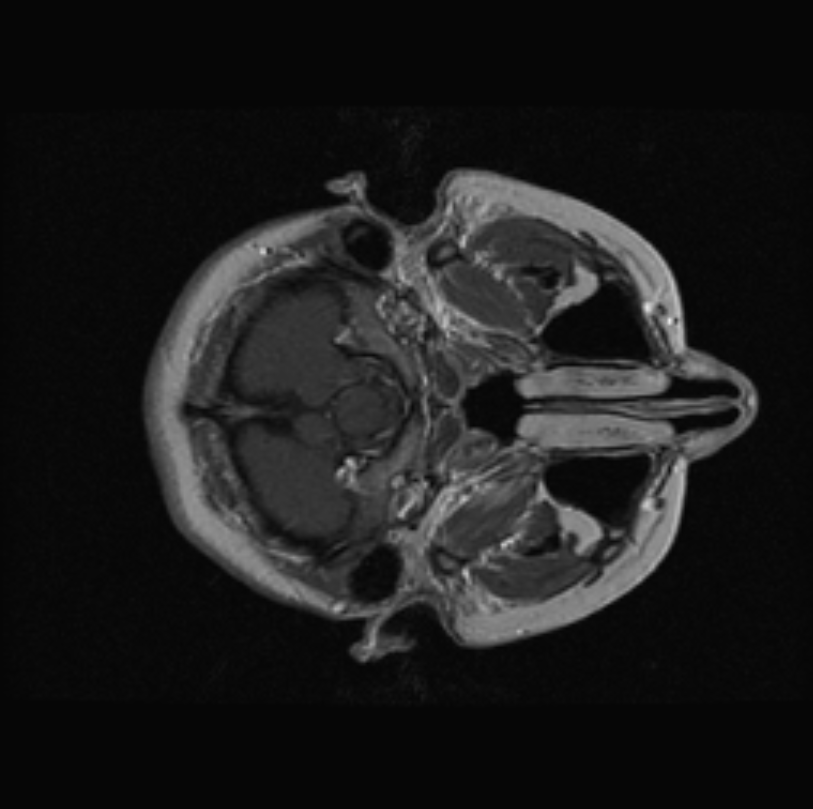
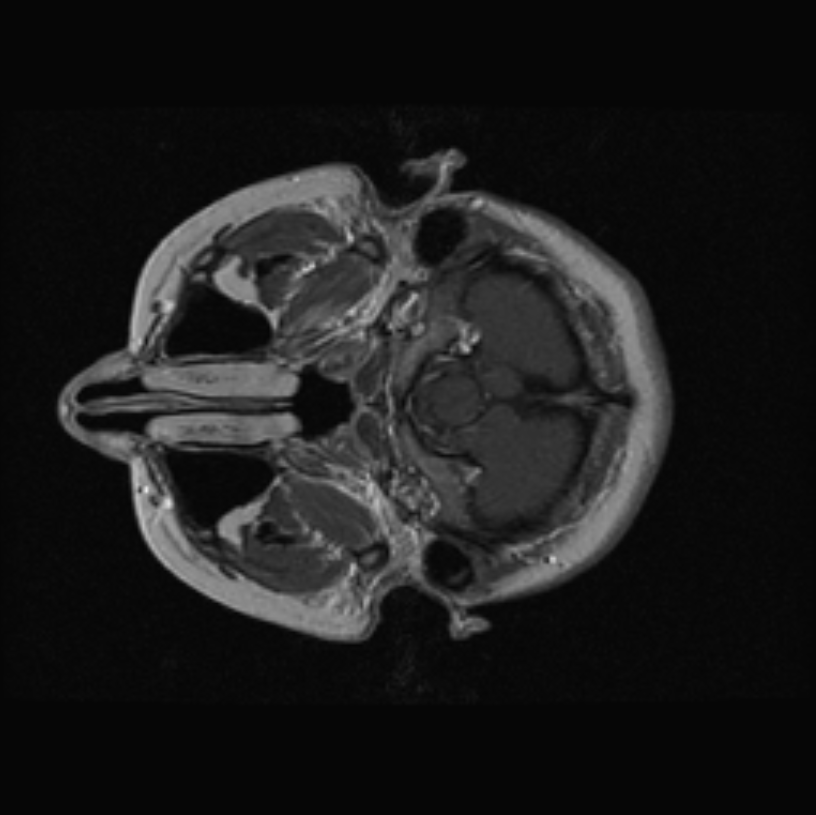
Rotate Counterclockwise
The Rotate Counterclockwise tool is used to rotate images 90 degrees counterclockwise with each click. To use this tool, select the Rotate Counterclockwise button or the drop-down menu next to Rotate Clockwise / Flip / Reverse and select the Rotate Counterclockwise for each 90 degrees counterclockwise rotation.
Steps to use the Counterclockwise Tool
Click the Rotate Counterclockwise image repeatedly to rotate the image in a 90 degrees counterclockwise motion.
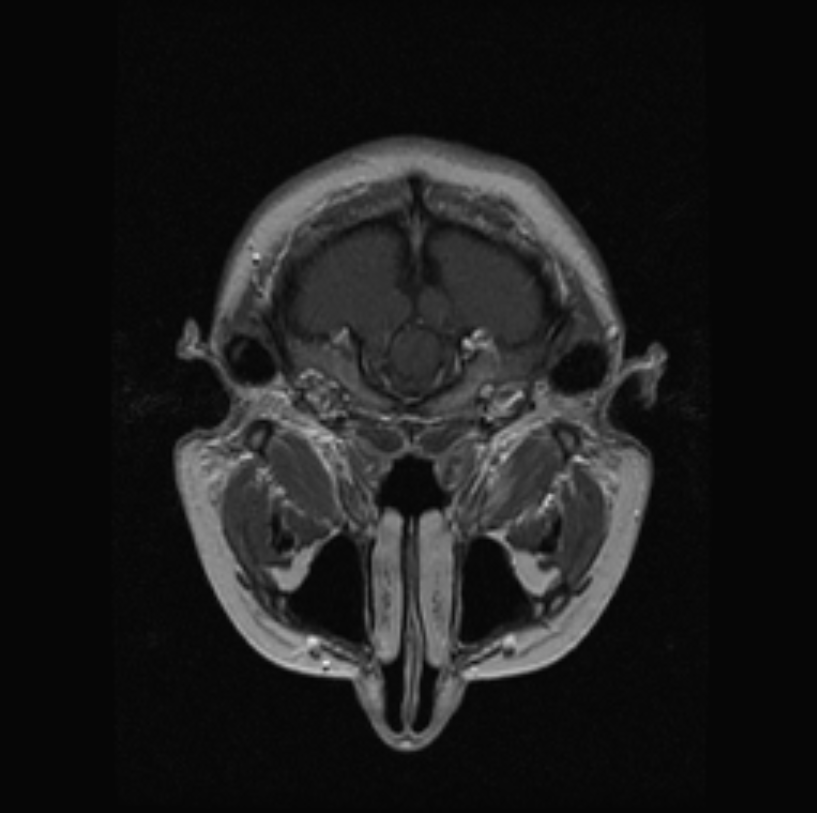
Flip
The Flip tool is used to mirror an image horizontally. The Flip tool button will flip the image across the x-axis. To use this tool, select the Flip button or the drop-down menu next to Rotate Clockwise / Rotate Counterclockwise / Reverse and select the Flip button every time that the horizontal mirror effect is wanted to apply to the image.
Steps to use the Flip Tool
Click the Flip button repeatedly to toggle the image between the original image and the flipped image.
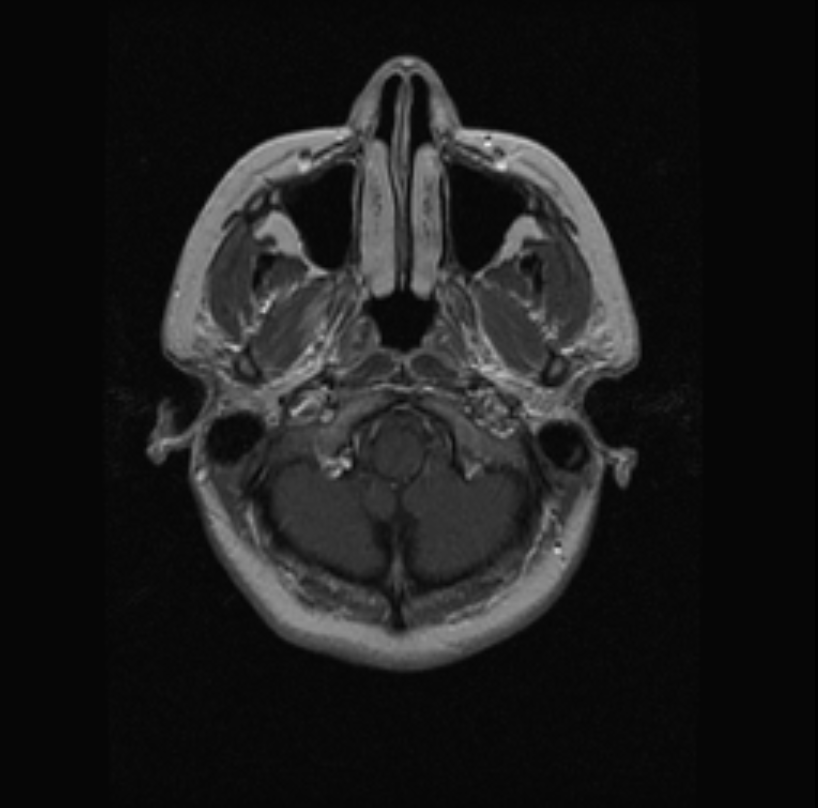
Reverse
The Reverse tool used to mirror an image vertically. The Reverse tool button will flip the image across the y-axis. To use this tool, select the Reverse button or the drop-down menu next to Rotate Clockwise / Rotate Counterclockwise / Flip and select the Reverse button every time that the vertical mirror effect is wanted to apply to the image.
Steps to use the Reverse Tool
Click the Reverse button repeatedly to toggle the image between the original image and the reversed image.
Align Center
The Align Center tool used to center the image along the y-axis in the viewer with one click. To use this tool, select the Align Center button or the drop-down menu next to the Align Left / Align Right button and select the Align Center button to center the image in the viewer along the y-axis.
Steps to use the Align Center Tool
Click the Align Center button.


Align Left
The Align Left tool used to bring the image to the left side of the viewer along the y-axis with one click. To use this tool, select the Align Left button or to the drop-down menu next to the Align Center / Align Right button and select the Align Left button to bring the image to the left side of the viewer along the y-axis.
Steps to use the Align Left Tool
Click the Align Left button.
Align Right
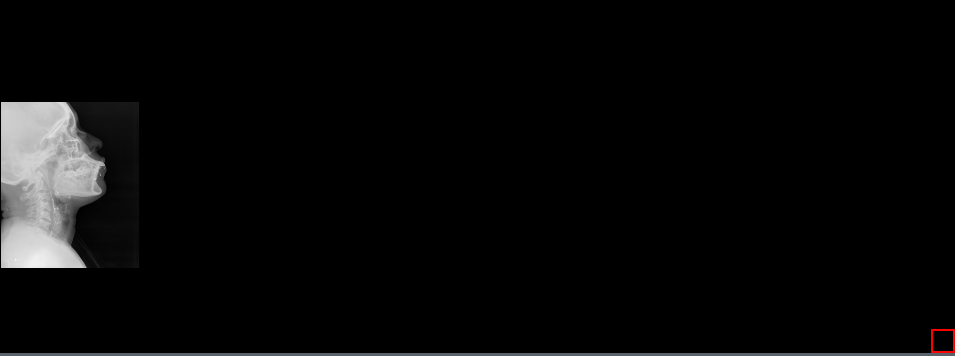
The Align Right tool used to bring the image to the right side of the viewer along the y-axis with one click. To use this tool, select the Align Right button or to the drop-down menu next to the Align Left / Align Center button and select the Align Right button to bring the image to the left side of the viewer along the y-axis.
Steps to use the Align Right Tool
Click the Align Right button.
Align Top
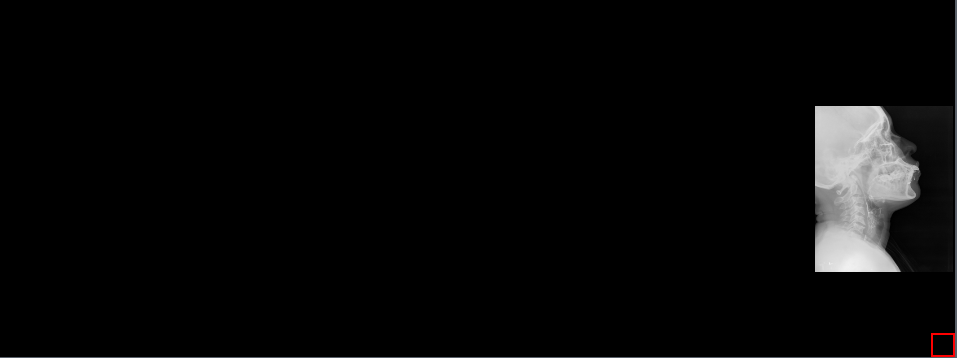
The Align Top tool used to bring the image to the top of the viewer along the x-axis with one click. To use this tool, select the Align Top button or to the drop-down menu next to the Align Right / Align Middle button and select the Align Top button to bring the image to the top of the viewer along the x-axis.
Steps to use the Align Top Tool
Click the Align Top button.

Align Bottom
The Align Bottom tool used to bring the image to the bottom of the viewer along the x-axis with one click. To use this tool, select the Align Bottom button or to the drop-down menu next to the Align Middle / Align Top button and select the Align Bottom button to bring the image to the bottom of the viewer along the x-axis.
Steps to use the Align Bottom Tool
Click the Align Bottom button.

Align Middle
The Align Middle tool used to bring the image to the middle of the viewer along the x-axis with one click. To use this tool, select the Align Middle button or to the drop-down menu next to the Align Bottom / Align Top button and select the Align Middle button to bring the image to the bottom of the viewer along the x-axis.
Steps to use the Align Middle Tool
Click Align Middle button.

5. Adjusting Image Viewing Tools
The Adjusting Image Viewing Tools are used to hone in on specific parts of the image and create different views of the image to allow for a better understanding of what is being observed.
Pan
The Pan tool is used to move the image around the area of the screen. To use this tool, select the Pan button. Click and hold the left mouse button down on the image and drag to the area on the screen that is desired.
Steps to use the Pan Tool
- Click the Pan button.
- Click and hold the image.
- Move the image to the desired area of the viewer.
Zoom
The Zoom tool used to zoom in on the image. To use this tool, select the Zoom button. Click and hold the left mouse button down and move the mouse up or down to zoom in or zoom out.
Steps to use the Zoom Tool
- Click the Zoom button.
- Click and hold, then move the mouse forward/backwards to adjust the zoom level.
Reload
The Reload tool is used to reset back to the original image. This does not deal with any of the annotations on the image but brings the image back to the original captured image. To use this tool, select the Reload button and the image should rest to its original.
Steps to use the Reload Tool
Click the Reload button to revert to the original image.
Shutter
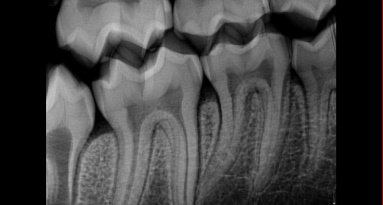
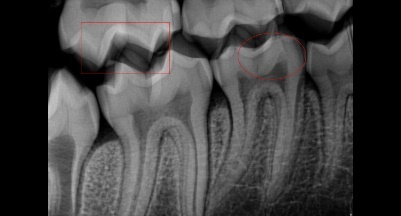
The Shutter Object tool is used to take a screen capture of a small section of the image and then removes everything in the image that is not selected. To use this tool, select the Rectangle , Ellipse , or Polygon tool and draw a shape around the image that is desired to be viewed. Then click the Shutter Object. This will show the part of the image within the shape that was created.
Steps to use the Shutter Object Tool
- Click the Rectangle or Ellipse Tool.
- Draw the rectangle/oval around the desired section.
- Click the Shutter Object button.
Spyglass
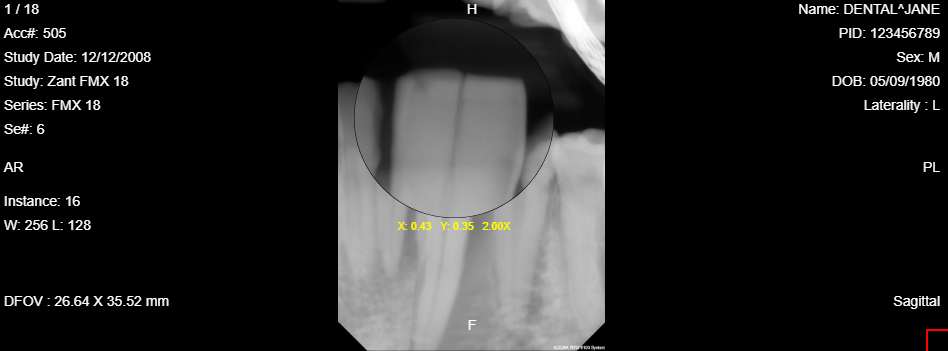
The Spyglass tool used to look at the image through a focused magnified image. To use this tool, click the Spyglass button and move the cursor around. Click and hold in order to use the tool and see the magnified portion of the image. It will provide a positioning by x and y beneath the magnifying glass. Also, there is the amount of magnification that is being provided, placed next to the x and y position numbers. Finally, the size of the magnifying glass can be increased or decreased by the scroll wheel.
Steps to use the Spyglass Tool
- Click the Spyglass button.
- Click and hold to see a magnified view of the image.
- Use the scroll wheel to adjust the size of the magnified view.
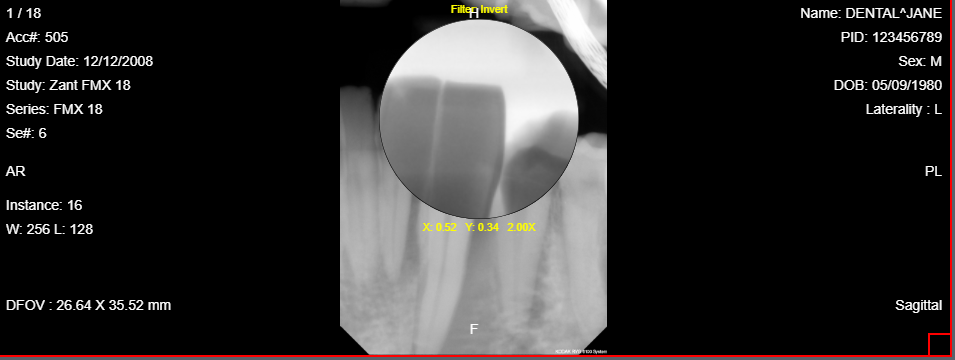
Spyglass Invert
The Spyglass Invert tool used to look at the image through the invert function but in a more focused view than the whole image. The image is also magnified so a close up of that particular part of the image can be viewed. To use this tool, click the Spyglass Invert button. Then, click and hold to move the spyglass tool around to view the image through the spyglass. It will provide positioning by x and y beneath the magnifying glass. Also, there is the amount of magnification that is being provided, placed next to the x and y position numbers. Finally, the size of the magnifying glass can be increased or decreased by the scroll wheel.
Steps to use the Spyglass Invert Tool
- Click the Spyglass Invert button.
- Click and hold to see a magnified view of the image.
- Use the scroll wheel to adjust the size of the magnified view.
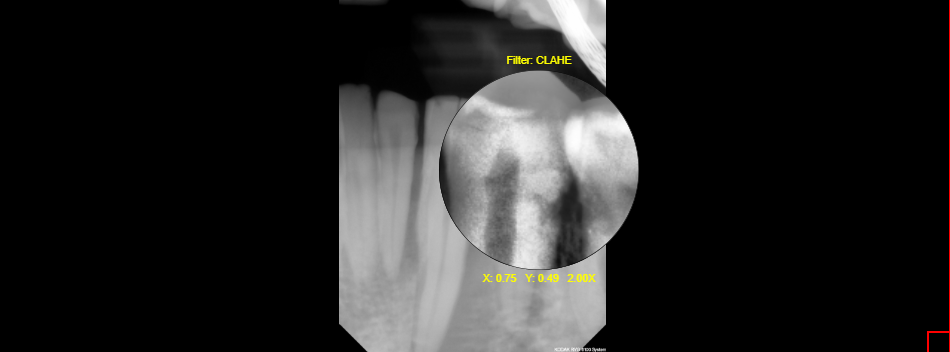
Spyglass Clahe
The Spyglass Clahe tool is used to view the magnified image in enhanced contrast. Clahe stands for Contrast Limited Adaptive Histogram Equalization. To use the tool, click on the Spyglass Clahe and move the cursor around. Click and hold to move the spyglass tool around when viewing the image through the spyglass. It will provide positioning by x and y beneath the magnifying glass. Also, there is the amount of magnification that is being provided, placed next to the x and y position number. Finally, the size of the magnifying glass can be increased or decreased by the scroll wheel.
Steps to use the Spyglass Clahe
- Click the Spyglass Clahe button.
- Click and hold to see a magnified view of the image.
- Use the scroll wheel to adjust the size of the magnified view.
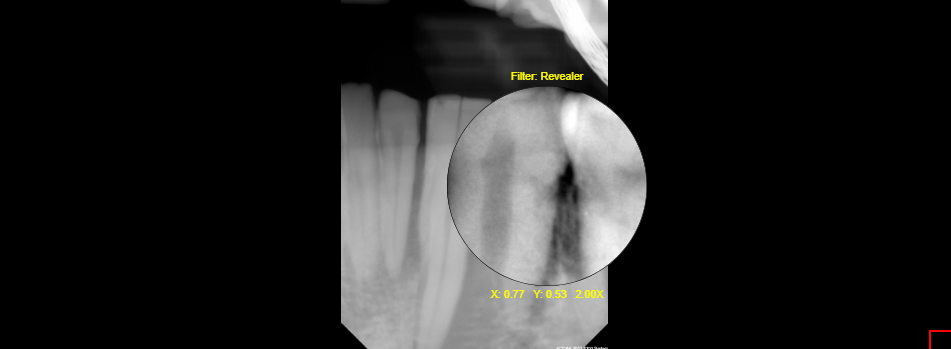
Spyglass Reveler
The Spyglass Reveler tool used to view the magnified image through a specialized image processing filter. This specialized image processing filter shows more detailed information underneath a magnified view. To use the tool, click on the Spyglass Reveler and move the cursor around. Click and hold to move the spyglass tool around when viewing the image through the spyglass. It will provide a positioning by x and y beneath the magnifying glass. Also, there is the amount of magnification that is being provided, placed next to the x and y position number. Finally, the size of the magnifying glass can be increased or decreased by the scroll wheel.
Steps to use the Spyglass Reveler
- Click the Spyglass Invert button.
- Click and hold to see a magnified view of the image.
- Use the scroll wheel to adjust the size of the magnified view.
6. Annotation Images and Measuring Tools
Annotation Images and Measuring Tools tools can be found on the Viewer Tab by selecting the Annotations button. These tools can be used to measure or highlight areas on an image. All effects that are placed on the image using these tools can be done without losing the original image.
Annotation Tools
Select
The Select tool used to have a default cursor.
To use this tool, select the Select tool button or the drop-down menu button next to one of the buttons from the list below. Then select the Select tool button. With one click, a default cursor will become the cursor.
- Arrow
- Curve
- Ellipse
- Free Hand
- Highlight
- Line
- Note
- Point
- Polygon
- Polyline
- Rectangle
- Text
- Text Pointer
Steps to use the Select Tool
Click on the Select button.
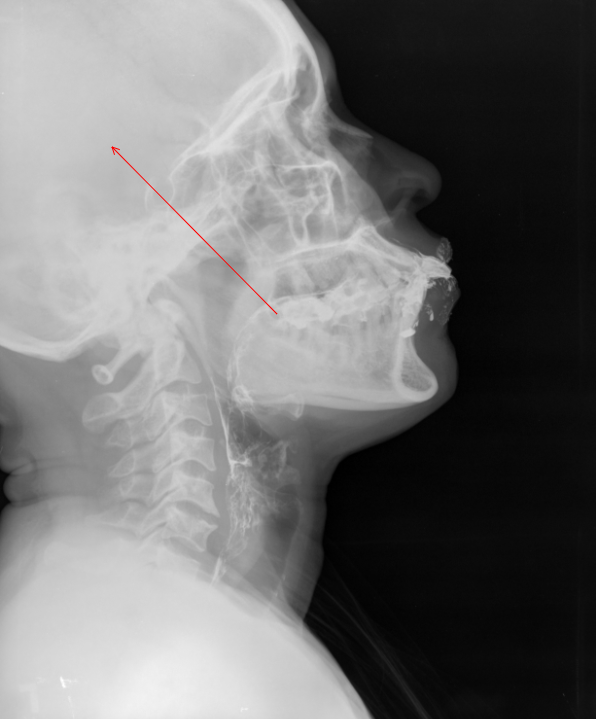
Arrow
The Arrow tool used to draw an arrow. It provides two green dots as a guide for where the arrow will be pointing. Moving the big green dot allows the arrow to orbit the smaller green dot. There are two small boxes used to manipulate the arrows length.
To use this tool, select the Arrow tool button or the drop-down menu button next to one of the buttons from the list below. Then select the Arrow tool button. The Arrow tool works well with the Point tool.
- Curve
- Ellipse
- Free Hand
- Highlight
- Line
- Note
- Point
- Polygon
- Polyline
- Rectangle
- Select
- Text
- Text Pointer
Steps to use the Arrow Tool
- Click the Arrow button.
- Click and drag the cursor to make any size arrow.
- Adjust the size of the arrow by the boxes on either side of the arrow.
- Adjust the direction of the arrow by the manipulating the two green dots.
- Click on the arrow to reset it on the image.
Point
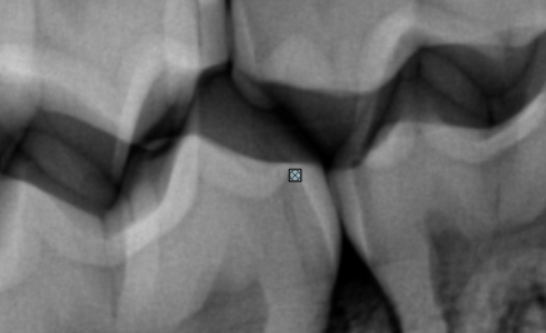
The Point tool used to create a small circle with an x in the center.
To use this tool, select the Point tool button or the drop-down menu button next to one of the buttons from the list below. Then select the Arrow tool button. The Point tool works well with the Arrow tool.
- Arrow
- Curve
- Ellipse
- Free Hand
- Highlight
- Line
- Note
- Polygon
- Polyline
- Rectangle
- Select
- Text
- Text Pointer
Steps to use the Point Tool
- Click the Point
- Click the spot where to place the Point tool.
- Click off the Point to set the point on the image.
- Click on the Point tool to reset the point.
Rectangle
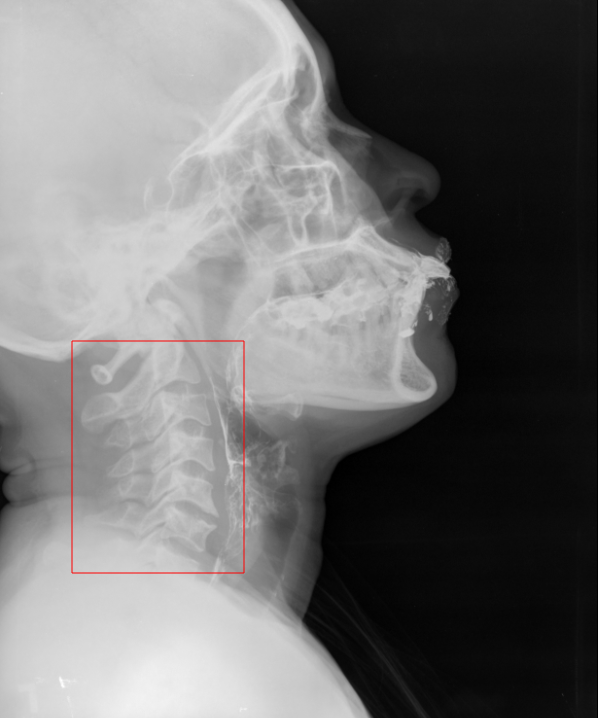
The Rectangle tool used to create an outline of a rectangle. The rectangle can be resized and rotated by selecting an already created rectangle and manipulating the small boxes and green dots.
To use this tool, select Rectangle tool button or the drop-down menu button next to the one of the buttons from the list below. Then select the Rectangle tool button and draw the rectangle to the size desired.
Steps to use to the Rectangle Tool
- Click the Rectangle button.
- Click and drag the cursor to create a rectangle.
- Manipulate the size by clicking and dragging the small boxes.
- Click on the Point tool to reset the point.
Ellipse
The Ellipse tool used to create an outline of an oval. The oval can be resized and rotated by selecting an already created rectangle and manipulating the small boxes and green dots.
To use this tool, select the Ellipse button or the drop-down menu button next to one the buttons from the list below and then select the Ellipse tool button.
Steps to use to the Ellipse Tool
- Click the Ellipse button.
- Click and drag the cursor to create a Oval.
- Manipulate the size by clicking and dragging the small boxes.
- Click on the Point tool to reset the point.
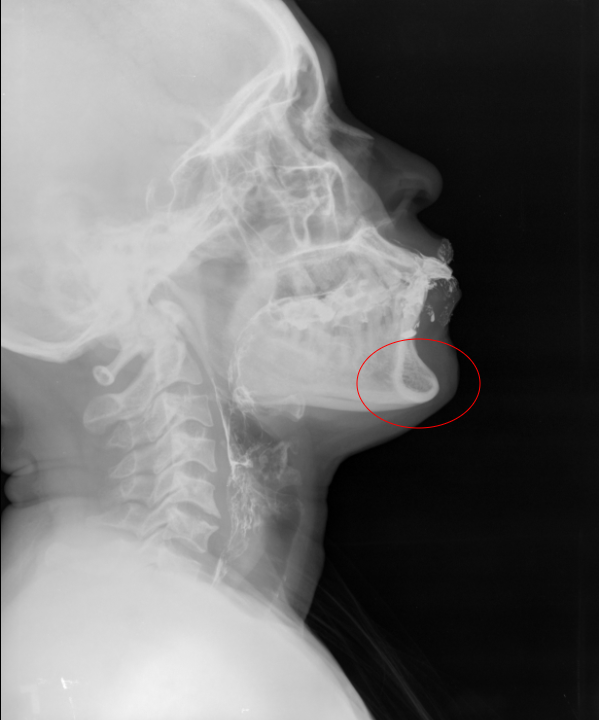
Curve
The Curve tool used to draw a line that will have a curve in it.
To use this tool, select the Curve button or the drop-down menu button next to a button from the list below and select the Curve tool button. Then click on the image and draw a line that is desired. The next click will then make the line curve. This creates a start point, apex, and end point.
- Arrow
- Ellipse
- Free Hand
- Highlight
- Line
- Note
- Point
- Polygon
- Polyline
- Rectangle
- Select
- Text
- Text Pointer
Steps to use the Curve Tool
- Click the Curve button.
- Click and drag the cursor to create a line.
- Click on another part of the image to create the curve.
- Next, click on another part of the image to continue making a curved line or double click to set the line.
- Manipulate the curve by moving the boxes or manipulate the two green circles.
- Click on the curve to reset it on the image.
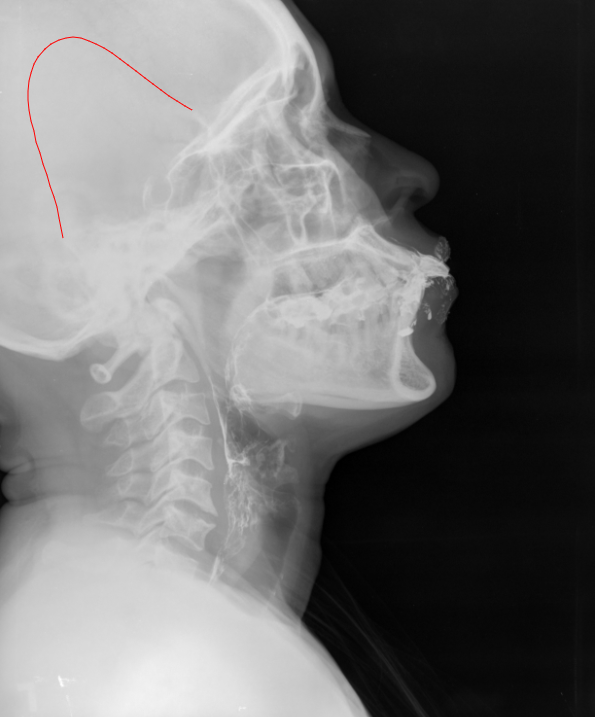
Line
The Line tool used to create a line. The line can be resized and rotated by selecting an already created line and manipulating the small boxes and green dots.
To use this tool, select Line tool button or the drop-down menu button next to a button from the list below and then select the Line tool button. Then draw the Line to the size desired.
- Arrow
- Curve
- Ellipse
- Free Hand
- Highlight
- Note
- Point
- Polygon
- Polyline
- Rectangle
- Select
- Text
- Text Pointer
Steps to use the Line Tool
- Click the Line button.
- Click and drag the cursor to create the size line desired.
- Click on the small boxes or two green circles to manipulate the line.
- Click off the image to set the line.
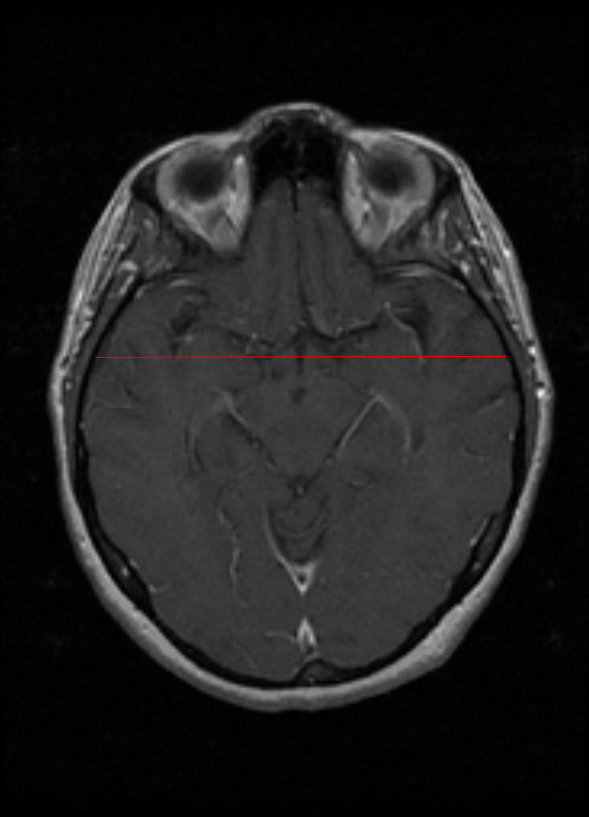
Free Hand
The Free Hand tool is used to simulate the drawing of a pen. The lines can be resized and rotated by selecting an already created line and manipulating the small boxes and green dots.
To use this tool, select Free Hand tool button or the drop-down menu button next to one of the buttons listed below and select the Free Hand tool button. Then draw the Free hand to the size desired.
Steps to use the Free Hand Tool
- Click the Free Hand button.
- Click and draw a line.
- Click on the small boxes or two green circles to manipulate the line.
- Click off the image to set the line.
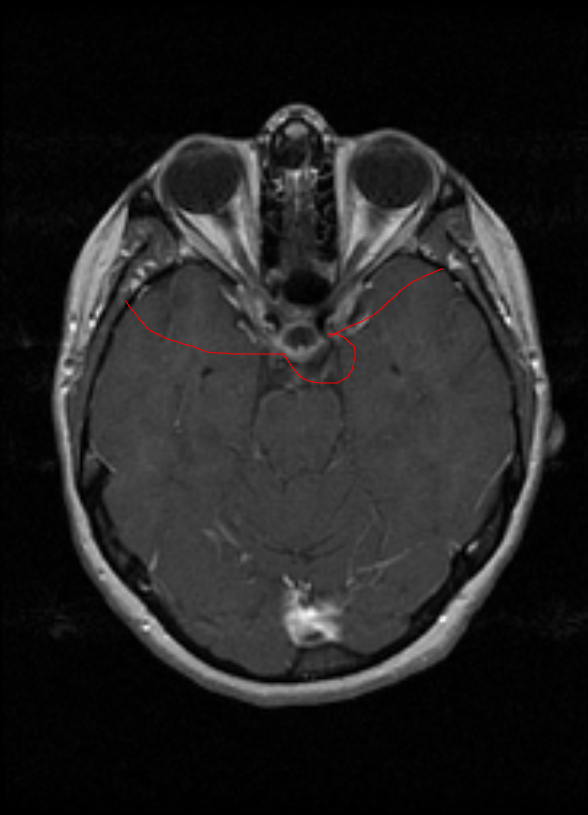
Polyline
The Polyline tool used to create a line in any direction within the x,y-axis.
To use this tool, select Polyline tool button or the drop-down menu button next to one of the buttons from the list below and then select the Polyline tool button. Then draw the Polyline to the shape and size desired by clicking after each line is set. Double click to allow access the resizing and rotation function.
Steps to use the Polyline Tool
- Click the Polyline button.
- Click and drag to create a line.
- Click repeatably to create more lines to draw a polygon.
- Double click to set the polyline.
- Click on the polyline.
- Click on the small boxes or two green circles to manipulate the line.
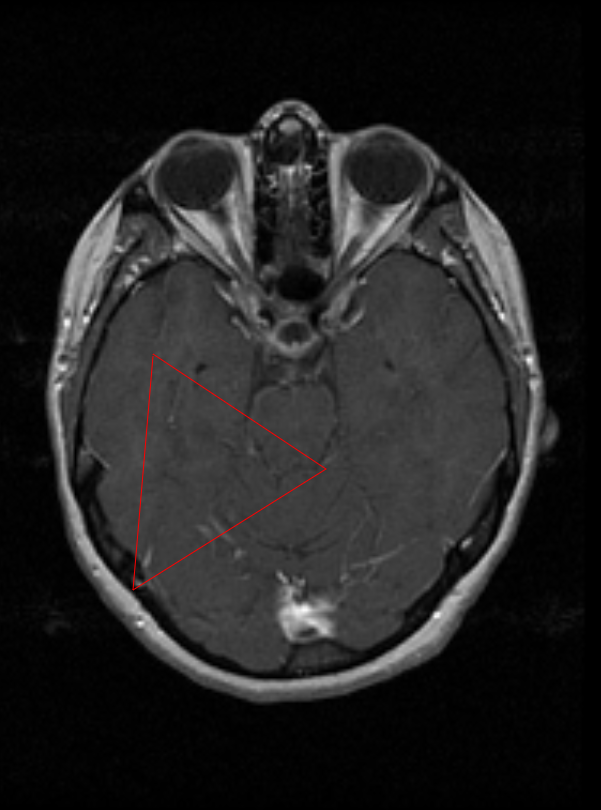
Polygon
The Polygon tool is used to create three or more connected lines to create a closed shape. The Polygon can be resized and rotated by selecting an already created polygon and manipulating the small boxes and green dots.
To use this tool, select Polygon tool button or the drop-down menu button next to one of the buttons listed below and then select the Polyline tool button. Then draw the Polygon to the shape and size desired. Once the finished drawing is in the desired shape, double click to close out shape.
Steps to use the Polygon Tool
- Click the Polygon button
- Click and drag to create a line.
- Click repeatedly to create a polygon.
- Double click to close the polygon.
- Click on the polygon.
- Click on the small boxes or two green circles to manipulate the line.
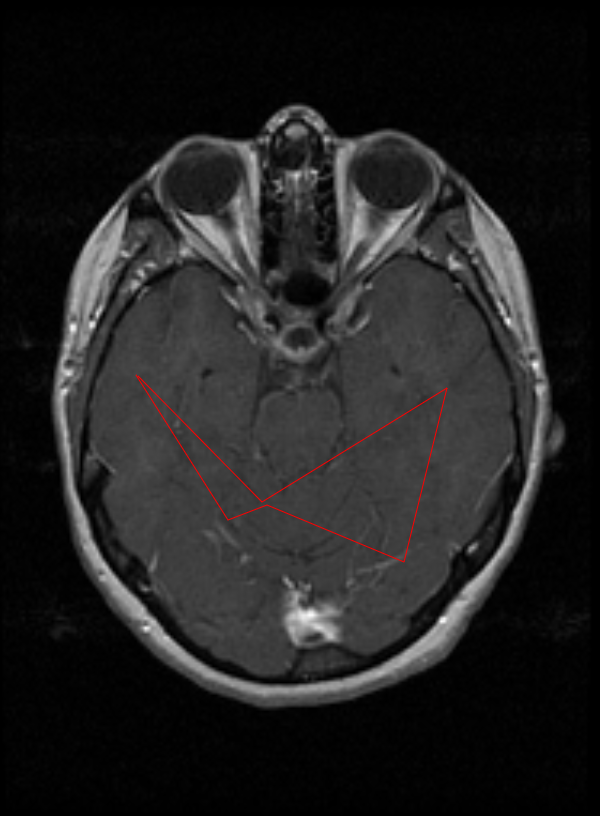
Text
The Text tool used to create a text box that will overlay on the image. The Text tool can be resized and rotated by selecting an already created Text box and manipulating the small boxes and green dots.
To use this tool, select Text tool button or the drop-down menu button next to one of the buttons listed below and then select the Text tool button. Then draw the Text box to the shape and size desired. Once the Text box is created, click on the box to have the ability to write in it.
- Arrow
- Curve
- Ellipse
- Free Hand
- Highlight
- Line
- Note
- Point
- Polygon
- Polyline
- Rectangle
- Select
- Text Pointer
Steps to use the Text Tool
- Click the Text button.
- Click and drag to create a Text box.
- To manipulate the size and the rotation of the Text box click the small boxes and the green circles.
- Double click the Text box to have the ability to write in the text box.
- Click on the image to set the Text box.
- To reset the Text box click on the Text box.
Note
The Note tool used to create a sticky note that will be displayed on the image. The Note tool can be resized and rotated by selecting an already created Note box and manipulating the small boxes and green dots.
To use this tool, select Note tool button or the drop-down menu button next to one of the buttons listed below and then select the Note button. Then draw the sticky note to the shape and size desired. Once the Note is created, click on the box to have the ability to write in it.
- Arrow
- Curve
- Ellipse
- Free Hand
- Highlight
- Line
- Point
- Polygon
- Polyline
- Rectangle
- Select
- Text
- Text Pointer
Steps to use the Note Tool
- Click the Note button.
- Click and drag to create a Text box.
- To manipulate the size and the rotation of the Text box click the small boxes and the green circles.
- Double click the Text box to have the ability to write in the text box.
- Click on the image to set the Text box.
- To reset the Text box click on the Text box.
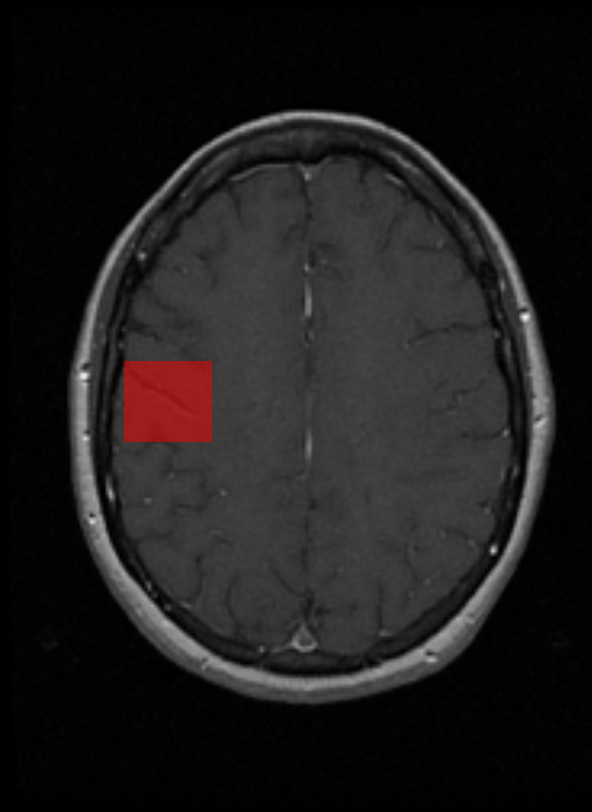
Highlight
The Highlight tool used to create an area that will be highlighted. The Highlight tool can be resized and rotated by selecting an already created highlighted area and manipulating the small boxes and green dots.
To use this tool, select Note tool button or the drop-down menu button next to one of the buttons listed below and then select the Highlight button. Then draw the highlight to the shape and size desired.
Steps to use the Highlight Tool
- Click the Highlight button.
- Click and drag to highlight the area desired.
- To manipulate the size and the rotation of the Text box click the small boxes and the green circles.
- Click on the image to set the Highlight tool.
- Click on the Highlighted area to reset the tool.
Text Pointer
The Text Pointer tool used to create a text box with the first click and then a line on the second click. The Text Pointer tool can be resized and rotated by selecting an already created highlighted area and manipulating the small boxes and green dots.
To use this tool, select Text Pointer tool button or the drop-down menu button next to the one of the buttons listed below and then select the Text Pointer button. Then draw the Text Pointer box to the shape and size desired. Once the Text Pointer is created, click where the line from the text box is going to go. To write in the box, click on the box and a blinking cursor will appear.
Steps to use the Text Pointer Tool
- Click the Text Pointer button.
- Click and drag to create a Text box.
- Click on a point to drag the pointer to.
- To manipulate the size and the rotation of the Text box click the small boxes and the green circles.
- Click on the image to set the Text Pointer Tool.
- Click on the Text Pointer Tool to reset the Text box and Pointer.
Measurement Tools
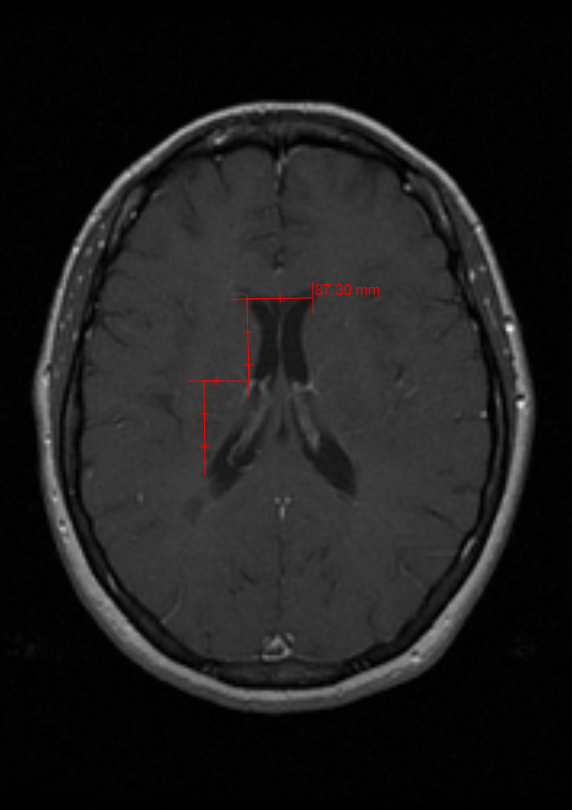
A set of Measurement Tools is available to measure distance or angles on an image (e.g., Ruler ).
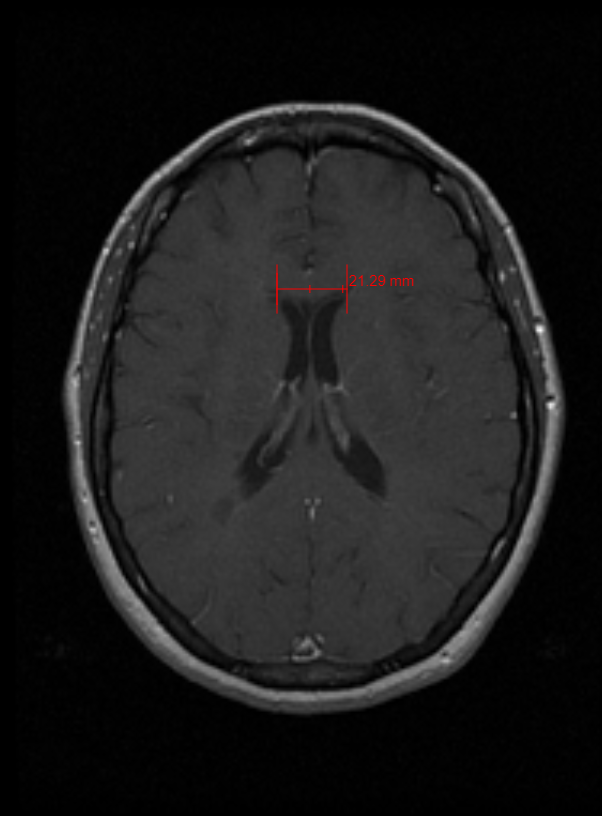
Ruler
The Ruler tool used to measure the actual distance from one point to another on an image.
WARNING
Due to limitations in data acquisition, the calculations are approximate.
To use the Ruler tool, select the Ruler button or the drop-down menu button next to one of the buttons listed below and then select the Ruler button. Click and hold on an image at the first point of measurement. Drag to the second point and let up on the mouse. The measurement will be displayed in a unit of measure selected. Millimeters is the default unit of measure.
Steps to use the Ruler Tool
- Click the Ruler Tool.
- Click and drag the Ruler to the length desired.
- To manipulate the size and the rotation of the Text box click the small boxes and the green circles.
- Click on the image to set the Ruler Tool.
- Click on Ruler to reset it.
Poly Ruler
The Poly Ruler tool is similar to the Ruler tool but is used for non-linear measurements.
WARNING
Due to limitations in data acquisition, the calculations are approximate.
To use the Poly Ruler tool, click on the Poly Ruler button or the drop-down menu button next to one of the buttons listed below and then select the Poly Ruler button. Click and drag on the first point of the measurement, then click and drag on the second point of the measurement, then the third, and so on until finished creating a measured line. The measurement will be displayed in millimeters by default.
Steps to use the Poly Ruler Tool
- Click the Poly Ruler Tool.
- Click and drag the Poly Ruler to the length desired.
- Click continuously to change the direction of the Poly Ruler.
- To manipulate the size and the rotation of the Text box click the small boxes and the green circles.
- Double-click on the image to set the Poly Ruler Tool.
- Click on Poly Ruler to reset it.
Protractor
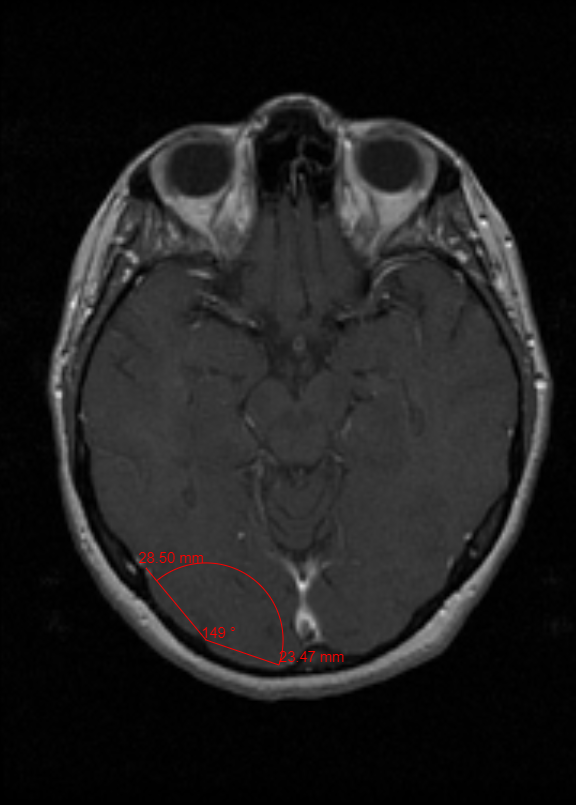
The Protractor tool is used to measure angles.
WARNING
Due to limitations in data acquisition, the calculations are approximate.
To use the Protractor tool, select the Protractor button. Click and drag starting from the point where the angle will be measured to the point where the first line will end. Then click and drag to the point where the second line will end. The measurement of the angle will appear in red.
Steps to use the Protractor Tool
- Click the Protractor button.
- Click and drag the line.
- Click and drag the other line to create the angle.
- To manipulate the size and the rotation of the Text box click the small boxes and the green circles.
- Double-click on the image to set the Protractor Tool.
- Click on the Protractor to reset it.
Annotation Management Tools
Show/Hide Annotations
The Show/Hide Annotations tool used to toggle all of the annotations on the image on and off.
To use this tool, select the Show/Hide Annotations tool or click the dropdown menu next to the Delete Annotations , Clear Annotations , Clear All Annotations , Save Annotations , or Load Annotations button and click the Show/Hide Annotations tool. Then, click the Show/Hide Annotations it to manipulate all of the annotations on and off.
Steps to use the Show/Hide Annotations
To toggle the annotations click the Show/Hide Annotations button.
Delete Annotations
The Delete Annotations tool used to delete selected annotations.
To use this tool, select the annotation that will be deleted and then click the Delete Annotations button or click the dropdown menu next to the Show/Hide Annotations , Clear Annotations , Clear All Annotations , Save Annotations , or Load Annotations button and click the Delete Annotations tool.
Steps to use the Delete Annotations
- Click on the annotation that is desired to be removed.
- Click the Delete Annotations.
Clear Annotations
The Clear Annotations tool used to remove all the annotations from a single selected image just by clicking the button.
To use this tool, select the Clear Annotations tool or click the dropdown menu next to the Show/Hide Annotations , Clear All Annotations , Save Annotations , or Load Annotations button and click the Clear Annotations tool and click it.
Steps to use the Clear Annotations Tool
Click the Clear Annotations button.
Clear All Annotations
The Clear All Annotations tool used to remove all the annotations on an entire series.
To use this tool, select the Clear All Annotations tool or click the dropdown menu next to the Show/Hide Annotations , Clear Annotations , Save Annotations , or Load Annotations button and click the Clear All Annotations tool and click it.
Steps to use the Clear All Annotations Tool
Click the Clear All Annotations button.
Save Annotations
The Save Annotations tool used to save any annotation to a selected image. This allows access to the Load Annotations button, which is used to load annotations back onto the image even if it gets cleared. This button can not be used unless there are annotations displayed on the image.
To use this tool, select the Save Annotations button or click the dropdown menu next to the Show/Hide Annotations , Clear Annotations , Clear All Annotations , or Load Annotations button and click the Save Annotations. This will bring a pop-up window where a description of the annotations can be logged. Then, click OK to save.
Steps to use the Save Annotations Tool
- Click the Save Annotations button.
- Write in the Description for the annotations.
- Click OK.
- Click OK on the to save the annotations.
Load Annotations
The Load Annotations tool used to load saved annotations. This button cannot be accessed if there are no annotations saved.
To use this tool, select the Load Annotations button or click the dropdown menu next to the Show/Hide Annotations , Delete Annotations , Clear Annotations , Clear All Annotations , or Save Annotations button and click the Load Annotations. Then, choose the annotation file that is intended to be uploaded. The annotations will then appear on the image that it was saved to. If one image is selected and wrong annotation file is clicked, then no annotations will load to the selected image but to the corresponding image in the series.
Steps to use the Load Annotations Tool
- Click the Load Annotations button.
- Click the desired annotation.
- Click OK to load the desired annotation.
OR
Click Cancel to exit the Load Annotations menu.
OR
- Select an annotation.
- Click the Delete button to delete the annotation from the Load Annotations menu.
- Click the OK/Cancel button.
7. 3D Imaging Tools
The 3D Imaging Tools can be found on the top of the Viewer Tab by selecting the 3D Imaging Tools. These tools can be used to increase the diagnostic quality of the image. All effects that are placed on the image using these tools can be done without losing the original image.
Cross Hair
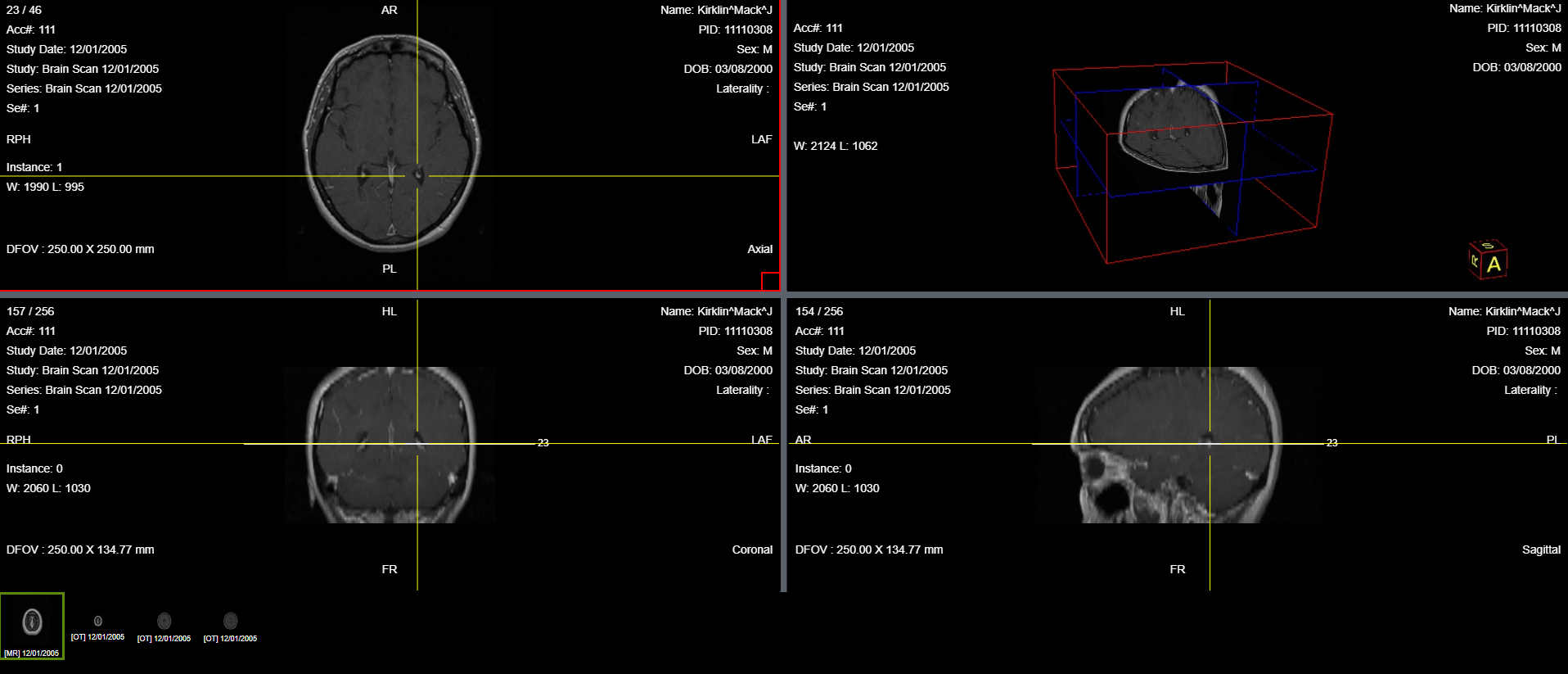
The Cross-Hair tool is used to help navigate the 3D Image. The Cross-Hair tool provides a cross hair on the Axial, Coronal, and Sagittal planes that move in sync with each other providing the same location. The reason there is symmetry between the cross hairs is due to the orthogonal projections being generated from the axial stack with the MPR generation of the three planes. To use this tool, click on the Cross-Hair button. Then click any of the three plane windows. The cross hair will formulate on the window that is selected, then select one of the other two windows to get the other windows to produce the cross
hair.
Steps to use the Cross Hair Tool
- Click the Cross Hair button.
- Then, click the screen within the viewer.
Show Reference Line
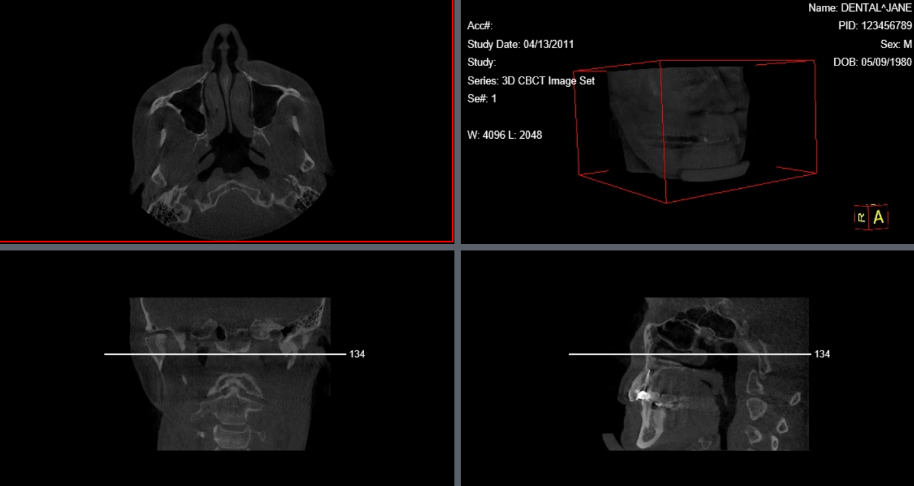
The Show Reference Line Tool shows the intersection of the selected image with in an orthogonal/oblique stack (3D image). A line will appear in the adjoining views where the intersection is taking place as well as a number that corresponds to the image that is being intersected.
To use this tool, select an image. Then click the Show Reference Line button. An intersecting line will populate in the other two views, as well as a number that corresponds to the image slice.
Steps to use the Show Reference Line Tool
- Click one of the windows within the 3D image set.
- Next, click the Show Reference Line button to toggle the reference line on/off.
- Click on different windows to see the reference line intersect in the other windows.
Show First and Last Reference Line
The Show First and Last Reference Line tool shows where the first and last image in the Image set are located. This tool helps give orientation to the 3D image.
To use this tool, select the original image in the Axial View. Then click the Show First and Last Reference Line button. This should allow two horizontal blue reference lines with numbers associated to the first and last image in the set, appear at the top and bottom of the Coronal and Sagittal view. Also, when the Show First and Last Reference Line button is applied, and the Sagittal View is selected, two vertical blue reference lines will appear in the Coronal and Axial view. Select the Coronal window with the Show First and Last Reference Image button and a single vertical blue line will appear in the Sagittal view.
Steps to use the Show First and Last Reference Line
Click the Show First and Last Reference Line to toggle between on/off.
3D Cursor
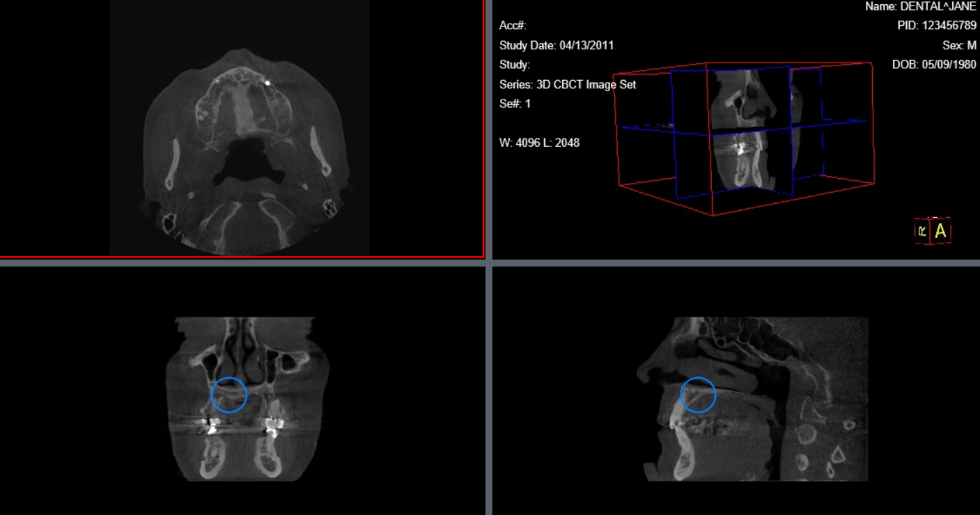
The 3D Cursor tool is used to locate a point on an image in different image boxes. When the image is clicked a blue circle will show up in the other orthogonal stacks.
To use the 3D Cursor tool, select the image plane that is intended to be viewed. Then, click the 3D Courser button. Once the 3D Cursor button is selected, click and hold to use the 3D Cursor. When the cursor is moved around, there will be blue circles that are in orthogonal stacks that are moving in symmetry with the cursor. To stop using the 3D cursor release the left-click button.
Steps to use the 3D Cursor
- Click the 3D Cursor button.
- Click and hold over the image to use the 3D Cursor.
8. DICOM Imaging Buttons
The DICOM Imaging buttons are used to see the DICOM information for each image.
Toggle Tags
The Toggle Tags tool used to toggle some of the main DICOM tags on and off. To use this tool, select the Toggle Tags button and switch the tags on and off.
Steps to use the Toggle Tags Tool
Click the Toggle Tags button to turn on and off the DICOM tags.
Show Dicom
The Show Dicom button displays the Dicom tags of the images you're viewing. Clicking it will open a new window in which the tags, their names and values are displayed.
Steps to use the Show Dicom Tool
Click the Show Dicom button to open the pop up window.
9. Capture
The Capture tool used to take a picture of the image being viewed and saving the image as a JPG file format.
To use this tool, click the Capture button. Once captured, the option to open, save, or cancel will be available.
Steps to use Capture
- Select an image within the series.
- Click Capture button.
- The image will be sent to the native image viewer.
- Save the image.
10. Audio Tools
Waveform Basic Audio
The Waveform Basic Audio tool used to play any audio from a DICOM file.
To use this tool, select the image that has the audio file. Then click the Waveform Basic Audio button to listen to the audio. If an image is selected that does not have audio attached, then a window will come up to indicate that the selected instance does not have audio.
0 Comments